Graphics optimization for top games
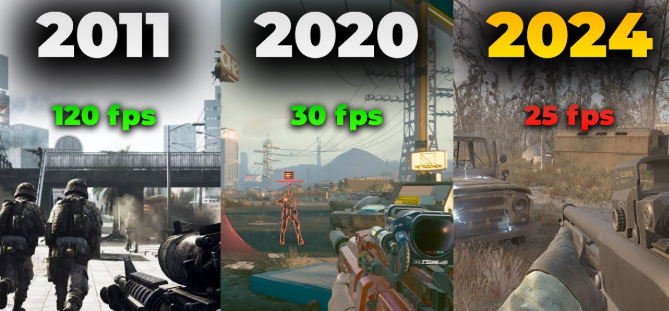
PC gaming in 2026 delivers stunning visuals and realistic gameplay, but high-quality graphics can sometimes slow down performance. Graphics optimization ensures your favorite games run smoothly, look great, and maintain high frame rates. Whether you play action, RPG, strategy, or multiplayer games, optimizing graphics settings helps balance performance and visuals for the best experience.
Why Graphics Optimization Matters
- Smooth Gameplay – Avoid lag, stutter, or crashes during intense action.
- Better Visuals – Adjust settings to enjoy realistic textures, lighting, and effects.
- Prevent Overheating – Optimized graphics reduce CPU and GPU strain.
- Extended Hardware Life – Prevents damage from excessive load.
- Competitive Advantage – Higher frame rates improve response time in multiplayer games.
Top Graphics Settings to Optimize
- Resolution – Lower resolution increases frame rate but reduces clarity. Use native resolution for the best visuals.
- Texture Quality – Adjust textures depending on your GPU. Medium settings balance performance and appearance.
- Anti-Aliasing – Smooths jagged edges. FXAA or TAA settings work well without slowing the game.
- Shadows – Reducing shadow quality improves frame rates while keeping visuals acceptable.
- Lighting Effects – Turn down or optimize dynamic lighting for better performance.
- V-Sync – Synchronizes frame rates with your monitor. Turn off if you need maximum FPS.
- Draw Distance / Level of Detail – Lowering it reduces GPU load while still displaying nearby objects.
- Post-Processing Effects – Effects like motion blur or bloom can be reduced for smoother gameplay.
- Frame Rate Limit – Set a reasonable FPS cap to avoid overheating while maintaining smooth visuals.
- Monitor Refresh Rate – Match game settings with your monitor’s refresh rate (e.g., 120Hz, 144Hz) for smooth gameplay.
Tips to Optimize Graphics for Top PC Games
- Update Graphics Drivers – Always keep NVIDIA or AMD drivers updated for best performance.
- Use Game Optimization Tools – Tools like NVIDIA GeForce Experience or AMD Radeon Software can auto-optimize settings.
- Test Different Presets – Start with medium settings and adjust textures, shadows, and effects.
- Enable Performance Mode – Some games have “Performance” mode to prioritize FPS over graphics.
- Overclock With Caution – Overclocking GPU or CPU can improve performance but may increase heat.
- Close Background Applications – Free system resources to prevent stuttering or lag.
- Monitor Temperature – Use software to monitor GPU/CPU temperatures and prevent overheating.
Benefits of Graphics Optimization
- Better Frame Rates – Smooth and responsive gameplay, even in high-action scenes.
- Improved Visual Experience – Balanced graphics settings make games look realistic without performance drops.
- Reduced Lag – Optimized settings prevent stuttering, freezes, or crashes.
- Longer Hardware Life – Prevents overheating and excessive wear on components.
- Competitive Edge – High FPS and smooth gameplay improve performance in multiplayer games.
Frequently Asked Questions (FAQ)
What is the easiest way to optimize graphics in games?
Use built-in game presets or auto-optimization tools from NVIDIA or AMD.
Can I play top games on a low-end PC?
Yes, by lowering resolution, textures, shadows, and other effects, even low-end PCs can run top games.
Does optimizing graphics reduce visual quality?
Some settings like shadows or anti-aliasing may be reduced, but you can balance quality and performance.
Should I always use maximum settings?
No, maximum settings may cause lag or overheating if your PC cannot handle it.
Do graphics optimizations help multiplayer games?
Yes, smoother graphics improve FPS, reduce lag, and give better response time in competitive multiplayer games.
Conclusion
Graphics optimization in 2026 is essential for enjoying top PC games smoothly and beautifully. By adjusting settings like resolution, textures, shadows, and lighting, and using optimization tools, you can balance performance and visuals. Optimized graphics prevent lag, reduce overheating, and enhance your gaming experience whether playing action-packed shooters, MMORPGs, or strategy games. Following these tips ensures that your PC games look great, run fast, and give you an edge in competitive multiplayer matches.