How to Recover Deleted Files on Android
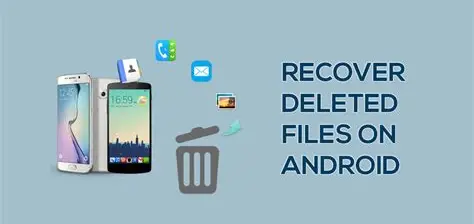
Accidentally deleting important photos, videos, documents, or other files on your Android device can be stressful. Fortunately, Android provides multiple ways to recover deleted files — either through built-in tools, cloud backups, or specialized recovery apps. Following the right steps quickly increases your chances of restoring lost data.
1. Check Google Photos or Gallery Trash
If you deleted images or videos, Google Photos automatically moves them to the Trash (or Bin) for 30–60 days. Open Google Photos > Library > Trash, select the files you want, and tap Restore. Many OEM gallery apps like Samsung Gallery or Xiaomi Gallery have similar trash folders for temporary recovery.
2. Use Google Drive or Cloud Backup
If you regularly back up your files to Google Drive or another cloud service, check there first. Open the app, navigate to My Drive or Backups, and restore the deleted file. Cloud backups are reliable because they preserve files even if the phone storage is wiped.
3. Use File Recovery Apps
Several trusted apps on the Google Play Store help recover deleted files:
- DiskDigger – Recovers photos and videos without root access.
- Dr.Fone – Data Recovery – Recovers multiple file types including messages, contacts, and media.
- EaseUS MobiSaver – Offers simple scanning and recovery options.
Install the app, follow on-screen instructions, and allow access to scan deleted files. For deeper recovery, some apps may require rooting your device.
4. Connect to a PC with Recovery Software
For extensive recovery, connect your Android device to a PC and use software like Recuva, FonePaw Android Data Recovery, or iMobie PhoneRescue. These tools scan internal storage and SD cards to retrieve deleted files. Make sure USB debugging is enabled in Settings > Developer Options.
5. Restore from SD Card or External Storage
If your files were stored on an SD card or external storage, remove the card and use a card reader with PC recovery software. Many tools can restore deleted photos, videos, and documents from formatted or corrupted SD cards.
Tips to Maximize Recovery Success
- Stop using the device immediately after deletion to prevent overwriting.
- Avoid installing unnecessary apps or downloading files until recovery is complete.
- Regularly back up important files to Google Drive, OneDrive, or an external drive.
FAQ: Recovering Deleted Files on Android
Q1: Can I recover deleted files without root access?
Yes, apps like DiskDigger and Google Photos Trash allow recovery without rooting, though some advanced recoveries require root.
Q2: How long do deleted files stay recoverable?
Files in Google Photos Trash usually remain for 30–60 days. After that, they may be permanently deleted.
Q3: Is it safe to use recovery apps?
Yes, if you download them from trusted sources like Google Play Store. Avoid unknown APKs that may contain malware.
Q4: Can I recover deleted WhatsApp messages?
Yes, if you have Google Drive backups or local backups on your device. Recovery apps can sometimes restore deleted chats.
Q5: Does recovery work if the device is factory reset?
Recovery after a factory reset is much harder and not guaranteed. External backups or PC recovery software may help but success rates are lower.
Using these methods, you can often recover important files quickly and safely. For best results, always keep automatic backups enabled and act fast after accidental deletion.