How to do iPhone battery optimization guide
Battery life is one of the most important aspects of iPhone usage. Even with the latest iOS updates, improper settings or heavy usage can drain battery faster than expected. Optimizing your battery can help your iPhone last longer throughout the day while maintaining performance.
1. Enable Low Power Mode
Low Power Mode reduces background activity, automatic downloads, and visual effects. Turn it on via Settings > Battery > Low Power Mode, or add it to Control Center for quick access. Use it when your battery is low or during long days away from a charger.
2. Monitor Battery Usage
Go to Settings > Battery to see which apps consume the most power. Limit usage or background activity for power-hungry apps.
3. Optimize Battery Charging
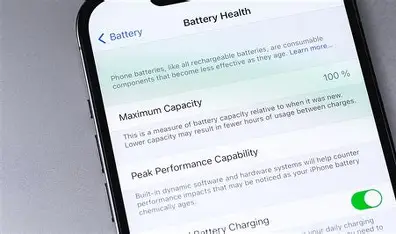
Enable Optimized Battery Charging in Settings > Battery > Battery Health & Charging > Optimized Battery Charging. This feature slows battery aging by learning your daily charging habits.
4. Adjust Screen Brightness and Auto-Lock
Lower screen brightness manually or enable Auto-Brightness in Settings > Accessibility > Display & Text Size. Set Auto-Lock to a shorter interval in Settings > Display & Brightness > Auto-Lock to conserve power.
5. Disable Background App Refresh
Prevent apps from updating in the background via Settings > General > Background App Refresh. You can disable it entirely or allow only essential apps to refresh.
6. Limit Location Services
Continuous GPS usage drains battery. Go to Settings > Privacy & Security > Location Services and set apps to access location Only While Using the App or Never if unnecessary.
7. Turn Off Push Email
Switch from Push to Fetch for emails in Settings > Mail > Accounts > Fetch New Data, and choose longer fetch intervals to save power.
8. Reduce Notifications
Frequent notifications wake the screen and use battery. Turn off non-essential alerts via Settings > Notifications.
9. Turn Off Unneeded Connectivity Features
Disable Bluetooth, Wi-Fi scanning, AirDrop, and Personal Hotspot when not in use. These features constantly search for connections in the background.
10. Update iOS and Apps
Keep your iPhone and apps updated via Settings > General > Software Update and App Store > Updates to benefit from efficiency improvements and bug fixes.
11. Use Airplane Mode in Low-Signal Areas
Poor cellular coverage can drain battery quickly. Enable Airplane Mode when connectivity is not needed or in areas with weak signals.
12. Avoid Extreme Temperatures
Keep your iPhone between 0–35°C (32–95°F) to prevent battery degradation and maintain optimal performance.
FAQ: iPhone Battery Optimization
Q1: Does Low Power Mode affect performance?
Yes, it temporarily reduces background activity and visual effects but extends battery life significantly.
Q2: How does Optimized Battery Charging help?
It slows battery aging by limiting the time your iPhone spends fully charged based on your usage routine.
Q3: Will turning off Location Services save battery?
Yes, reducing GPS usage significantly lowers power consumption. Only allow location access for apps that need it.
Q4: How often should I check battery usage?
It’s good practice to review battery usage monthly or whenever you notice faster battery drain.
Q5: Can software updates improve battery life?
Yes, iOS updates often include optimizations that fix bugs and improve energy efficiency.
By following these tips, you can maximize daily battery life, maintain long-term battery health, and reduce the need for frequent charging.