How Professional Developers Solve Real World Debugging Problems in Production

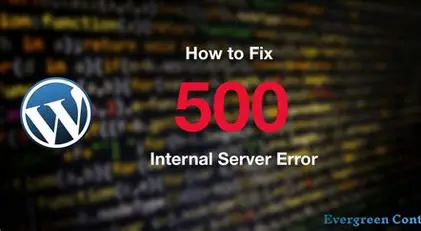
One of the most common production issues is when a WordPress website suddenly starts showing a 500 Internal Server Error after a plugin update. Beginners often panic when the entire website becomes inaccessible. However, experienced developers approach the issue calmly and logically. The first step is to check the server error logs to identify the exact cause of the failure. In many cases, the issue is related to a plugin conflict or a PHP version mismatch. A professional may temporarily rename the recently updated plugin’s folder using the hosting File Manager to disable it. If the site restores, the plugin was the cause. Clearing the cache and verifying PHP compatibility usually resolves the issue. In reality, a large percentage of 500 errors in WordPress are caused by plugin conflicts or incompatible PHP versions.
React App Not Loading After Deployment
A common scenario in modern web development occurs when a React application works perfectly in development but shows a blank white screen after deployment. The browser console often displays an “Uncaught TypeError” Instead of guessing, developers open Chrome DevTools and check the Console tab for JavaScript errors. They then inspect the Network tab to verify whether API requests are failing. Frequently, the issue is related to incorrect environment variables or a wrong API base URL configured for production. Many deployment issues happen simply because the production environment is pointing to an invalid or local API endpoint.
API Works in Postman but Not in Frontend
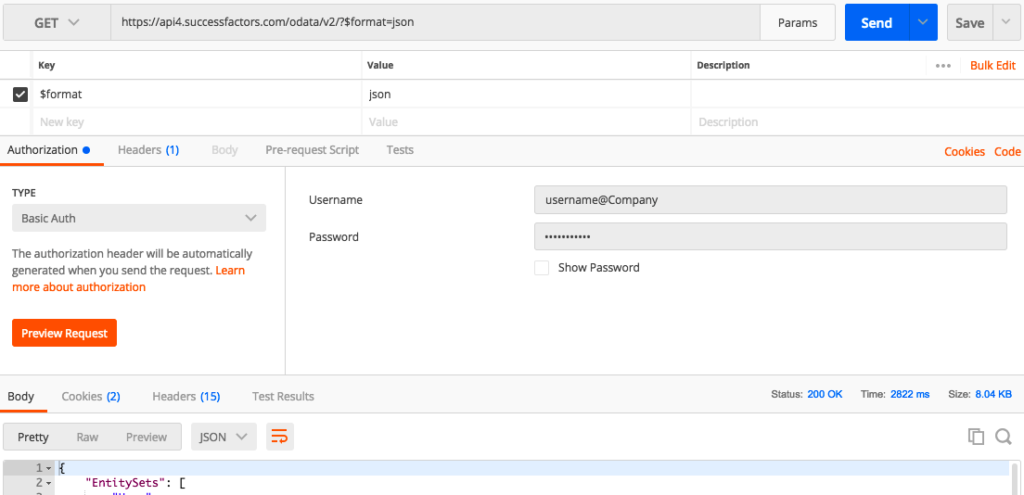
Another frequent debugging situation is when an API functions correctly in Postman but fails in the browser. The error displayed is usually related to CORS. This happens because browsers enforce security policies that tools like Postman do not. The solution is to properly configure CORS on the backend by allowing requests from the frontend domain and ensuring correct HTTP methods such as GET, POST, or PUT are permitted. A significant number of frontend-backend communication issues are caused by improper CORS configuration.
Login System Not Working
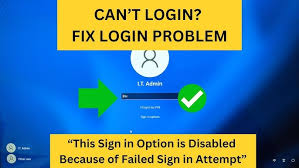
Sometimes users enter the correct password but still cannot log in. This is typically related to authentication logic issues. Developers should verify that the same hashing algorithm is used during both registration and login. If bcrypt is used, the salt rounds must match correctly. It is also important to log and verify the decoded JWT token and check whether the token has expired. In many cases, authentication failures occur due to mismatched token secrets or improper password comparison logic.
Website Loading Very Slow
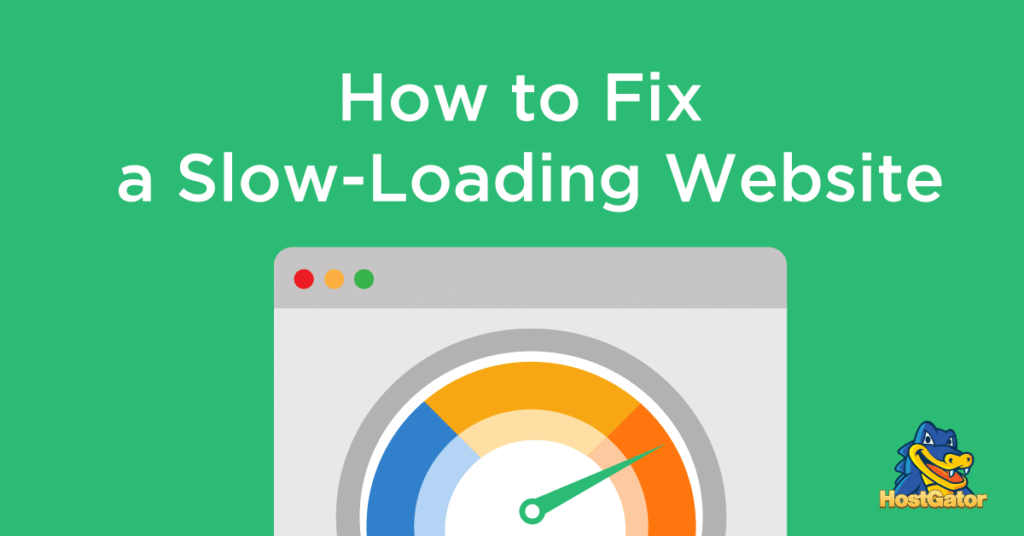
Performance problems are another real-world debugging challenge. If a website loads slowly and performance tools indicate a poor Largest Contentful Paint score, the issue is often related to heavy images or render-blocking CSS and JavaScript. Developers analyze the site using tools like PageSpeed Insights and identify large image files or blocking resources. Optimizing images, enabling caching, using a content delivery network, and deferring non-critical JavaScript can significantly improve load speed and overall performance.
Database Connection Fails in Production
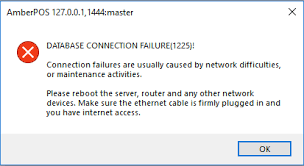
An error such as “ECONNREFUSED” usually indicates that the application cannot connect to the database. The first step is to verify database credentials in the production environment. Developers check whether the database server is running, confirm that the correct port is being used, and ensure that firewall settings are not blocking the connection. A surprisingly common issue is that the .env file was not properly configured or uploaded to the production server.
Infinite Loading Spinner
An infinite loading spinner in a frontend application typically means the app is waiting indefinitely for an API response. Developers inspect the Network tab to see whether the request is failing or not returning at all. They verify the response status and implement proper error handling and timeout logic. Many such issues occur because developers did not account for failed or slow network responses.
“Module Not Found” After Deployment
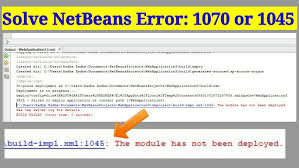
After deploying a Node.js or React application, developers may encounter a “Module Not Found” error. This usually indicates that a dependency is missing. Running the installation command to reinstall dependencies often fixes the issue. Sometimes rebuilding the project is necessary. It is also critical to ensure that both package.json and package-lock.json are properly committed and pushed to the repository.
WordPress 404 Error on All Pages
In WordPress, it is common to encounter a situation where all internal pages return a 404 error while the homepage still loads. This problem is usually related to permalinks configuration. The solution is simple: navigate to the Permalinks settings in the WordPress dashboard and save the settings again. This regenerates the .htaccess file and restores proper routing.
Server Crashes Under Traffic
When a website crashes during high traffic, the underlying cause is typically server overload. Developers address this by enabling caching to reduce server load, implementing rate limiting to prevent excessive requests, optimizing database queries, and upgrading hosting resources if necessary. Proper scaling strategies and performance monitoring help prevent such crashes in the future.
Frequently Asked Questions (FAQ)
1. What is the most common cause of production bugs?
Most production bugs are caused by recent code changes, misconfigured environment variables, or dependency version mismatches.
2. How can I debug faster?
Follow a structured approach: reproduce, read the error, check logs, isolate the problem, fix the root cause, and test thoroughly. Avoid guessing.
3. Why is logging important in debugging?
Logs provide insight into what happened before the error occurred. Without logs, debugging becomes guesswork.
4. How do I prevent website crashes after updates?
Always test updates in a staging environment before applying them to production. Keep backups ready for quick recovery.
5. What tools help in debugging production systems?
Chrome DevTools, server logs, monitoring dashboards, API testing tools, version control systems, and performance analysis tools are essential.
6. What is the difference between fixing symptoms and fixing root causes?
Fixing symptoms temporarily hides the issue, while fixing the root cause permanently resolves the underlying problem.
7. How do senior developers stay calm during outages?
They rely on process, experience, monitoring systems, and structured troubleshooting instead of reacting emotionally.
8. Should I debug directly in production?
No. Always reproduce and test fixes in a staging environment whenever possible to avoid further disruption.