How to set up iPhone for productivity
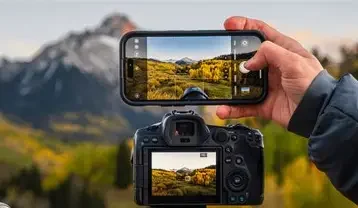
An iPhone is not just for calls, photos, and social media. When set up correctly, it can become a powerful productivity tool for students, professionals, and business owners. Devices from Apple running iOS include many built-in features that help you manage time, tasks, focus, and communication efficiently. This complete step-by-step guide will help you turn your iPhone into a productivity machine.
Step 1: Organize Your Home Screen
Start by removing unnecessary apps from the main screen. Keep only essential apps such as Calendar, Notes, Reminders, Mail, and Files. Create folders like Work, Study, Finance, and Tools. A clean home screen reduces distraction and saves time.
You can also use the App Library feature to hide rarely used apps while keeping them accessible when needed.
Step 2: Use Focus Mode to Avoid Distractions
Focus Mode is one of the most powerful productivity features in iOS.
Go to Settings
Tap Focus
Create custom modes such as Work, Study, or Personal
In each Focus mode, allow only important apps and contacts. For example, during Study mode, allow only educational apps and block social media notifications. This improves concentration and reduces interruptions.
Step 3: Set Up Calendar and Reminders Properly
Open the Calendar app and add all important events such as meetings, exams, deadlines, and appointments. Use different colors for categories.
Then use the Reminders app for daily tasks. Create separate lists like Office Tasks, Personal Tasks, Shopping List, or Study Goals. Enable time-based alerts so you never miss important work.
Step 4: Use Notes for Quick Capture
The Notes app is powerful and often underrated. You can create checklists, scan documents, attach images, and even lock important notes with Face ID. Organize notes into folders like Projects, Ideas, and Research for better management.
Step 5: Enable Widgets for Quick Access
Long press the home screen and add widgets for Calendar, Reminders, Weather, or Notes. Widgets allow you to see important information without opening apps. This saves time and improves efficiency.
Step 6: Manage Notifications Smartly
Too many notifications reduce productivity.
Go to Settings
Tap Notifications
Turn off notifications for non-essential apps
Keep alerts only for important apps like Email, Messages, or productivity tools. This keeps your focus clear.
Step 7: Use Productivity Apps
Apart from built-in apps, you can install productivity apps such as:
Notion for project management and notes
Todoist for advanced task tracking
Google Drive for file storage and sharing
Microsoft OneNote for structured notes
Choose apps that match your workflow and avoid installing too many tools.
Step 8: Set Up iCloud for Backup and Sync
Use iCloud to back up your data and sync across devices like MacBook or iPad. This ensures your files, contacts, and notes are safe and accessible everywhere.
Step 9: Use Siri and Shortcuts
Siri can set reminders, send messages, create notes, and open apps using voice commands.
The Shortcuts app allows you to automate tasks. For example, create a Morning Routine shortcut that turns on Focus Mode, opens Calendar, and plays music with one tap.
Step 10: Track Screen Time
Go to Settings
Tap Screen Time
Check how much time you spend on social media or entertainment apps. Set daily limits if needed. Reducing unnecessary screen time increases productivity.
Step 11: Keep Software Updated
Always update to the latest iOS version for security improvements and performance enhancements. Updates often include productivity improvements and bug fixes.
Common Mistakes to Avoid
Installing too many productivity apps
Ignoring Focus mode
Keeping notifications on for every app
Not organizing apps properly
Using phone without clear goals
Frequently Asked Questions (FAQ)
- Can an iPhone really improve productivity?
Yes. With proper setup using Focus Mode, Calendar, Reminders, and automation tools, an iPhone can significantly improve time management and task organization. - Which is better for productivity, built-in apps or third-party apps?
Built-in apps are simple and effective for most users. Third-party apps like Notion or Todoist are useful if you need advanced project management. - How do I reduce distractions on iPhone?
Use Focus Mode, disable unnecessary notifications, remove social media apps from the home screen, and set Screen Time limits. - Is iCloud necessary for productivity?
It is not mandatory, but iCloud helps sync data across devices and keeps important files backed up. - How often should I review my setup?
Review your app organization and goals once a month. Remove unused apps and adjust Focus settings as needed.
Final Conclusion
An iPhone can either distract you or empower you. The difference depends on how you set it up. By organizing apps, using Focus Mode, managing tasks with Calendar and Reminders, controlling notifications, and automating daily routines, you can transform your iPhone into a powerful productivity tool that supports your goals instead of distracting you.