Customize Android home screen like a pro
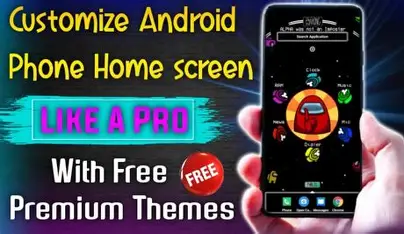
Your smartphone is something you use every day, so why not make it look and feel exactly the way you want? With Android, you get powerful customization options that let you design a home screen that matches your style and improves productivity. From widgets and launchers to icon packs and lock screen tweaks, here’s how you can customize your Android home screen like a pro.
Start with a Custom Launcher
The easiest way to transform your home screen is by installing a launcher app. A launcher controls your app layout, animations, gestures, and overall design. Popular options include Nova Launcher and Microsoft Launcher. These apps allow you to change grid size, hide apps, customize gestures, and create a clean, minimal look.
Use Icon Packs for a Fresh Look
Icon packs can completely change the visual style of your apps. Whether you prefer minimal icons, colorful themes, or dark aesthetics, you can find thousands of icon packs on the Play Store. After installing one, apply it through your launcher settings for an instant makeover.
Add and Resize Widgets
Widgets give you quick access to information without opening apps. You can add weather, calendar, clock, music controls, and productivity widgets directly to your home screen. Long-press on the home screen, tap “Widgets,” and drag your preferred widget into place. Resize it to fit your layout perfectly.
Create Smart App Folders
Instead of cluttering your home screen with dozens of apps, organize them into folders. Group apps by category such as Social, Work, Finance, or Entertainment. Some launchers even allow custom folder designs and swipe gestures.
Use Minimalist Layout Design
Professional customization often means keeping things simple. Try using fewer icons per screen, align widgets neatly, and maintain consistent spacing. A clean layout not only looks modern but also improves usability.
Customize the Lock Screen
Modern Android versions allow lock screen customization including clock styles, notification display options, and wallpaper effects. Choose a wallpaper that matches your theme and adjust lock screen shortcuts for quick access to camera or flashlight.
Set Custom Gestures
Advanced launchers let you assign gestures like double-tap to lock screen, swipe up to open app drawer, or pinch to access settings. This speeds up navigation and gives your phone a premium feel.
Use Live and Dynamic Wallpapers
Live wallpapers add subtle animations to your background. Some apps even offer dynamic wallpapers that change based on time of day or battery level.
Match Theme Colors
Many Android devices support dynamic color theming that adapts to your wallpaper. This automatically changes system colors, quick settings, and supported apps to match your background for a cohesive look.
Hide Unused Apps
Keep your home screen distraction-free by hiding rarely used apps in the app drawer. This keeps the interface clean and organized.
Backup Your Layout
Once you create the perfect setup, back it up using your launcher’s backup feature. This ensures you can restore your layout if you reset your device or switch phones.
FAQ: Android Home Screen Customization
Q1: Do I need a launcher to customize my home screen?
No, but a launcher gives you advanced customization features beyond the default settings.
Q2: Will launchers slow down my phone?
Most modern launchers are lightweight and optimized, so they should not noticeably impact performance.
Q3: Are icon packs free?
Many icon packs are free, while premium ones offer more designs and regular updates.
Q4: Can customization drain battery?
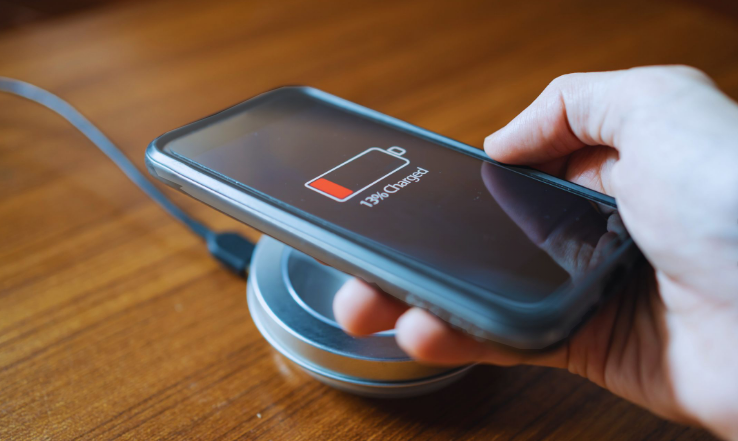
Heavy live wallpapers or constant animations may use more battery, but normal customization has minimal impact.
Q5: Is it safe to use third-party launchers?
Yes, as long as you download them from trusted sources like the Google Play Store.
With the right combination of layout, widgets, and themes, you can transform your Android device into a personalized, efficient, and visually stunning experience. If you want, I can also create step-by-step design ideas like minimalist setup, gaming theme, or productivity-focused layout.