How To | Troubleshooting Smartphone not charging – solutions
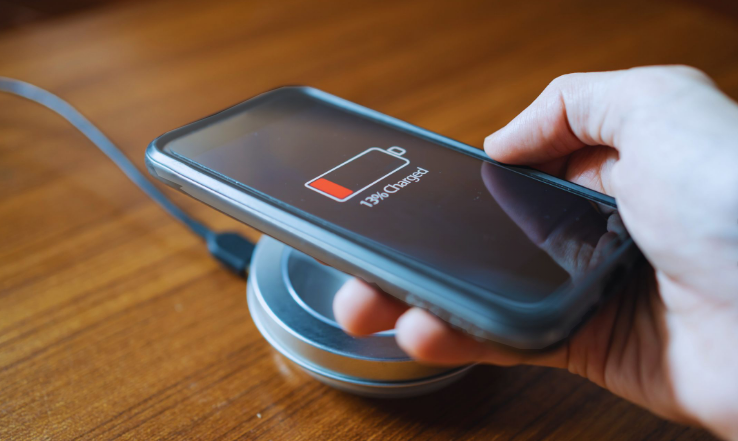
Smartphone not charging is a very common problem. Sometimes your phone shows charging but the battery percentage does not increase. Sometimes it does not respond at all when you plug in the charger. This issue can happen with any device, whether you use an iPhone 15, a Samsung Galaxy S23, or any other smartphone. The good news is that most charging problems can be fixed easily at home.
Before worrying about serious damage, follow these simple troubleshooting steps carefully.
Step 1: Check the Charging Cable
The most common reason for charging problems is a damaged cable. Look closely for cuts, bends, or loose connections. Try using another original or certified charging cable to see if the problem is solved.
Step 2: Check the Charger Adapter
Sometimes the wall adapter stops working. Plug your charger into a different power socket. You can also try another adapter to test if the issue is with the charger head.
Step 3: Inspect the Charging Port
Dust and dirt often collect inside the charging port. This blocks proper connection. Use a small soft brush or wooden toothpick to gently clean the port. Do not use metal objects because they can damage the pins.
Step 4: Restart Your Phone
A simple restart can fix software glitches. Turn off your phone completely, wait 30 seconds, and turn it back on. Then try charging again.
Step 5: Check for Software Updates
Outdated system software can sometimes cause charging issues. Go to Settings and check for system updates. Installing updates improves performance and fixes bugs.
Step 6: Try Charging in Safe Mode (Android)
Boot your Android phone into Safe Mode. If it charges normally in Safe Mode, a third-party app may be causing the issue. Remove recently installed apps.
Step 7: Avoid Using the Phone While Charging
Heavy gaming or video streaming while charging can slow down the charging speed. Let the phone charge without using it.
Step 8: Check for Overheating
If your phone becomes too hot, it may stop charging automatically to protect the battery. Let the phone cool down before charging again.
Step 9: Test with Wireless Charging (If Supported)
If your device supports wireless charging, try using a wireless charger. If wireless charging works but cable charging does not, the charging port may be damaged.
Step 10: Reset Settings (Last Option Before Service)
If nothing works, you can reset all settings from the settings menu. This will not delete your personal data but will reset network and system preferences.
When to Visit a Service Center
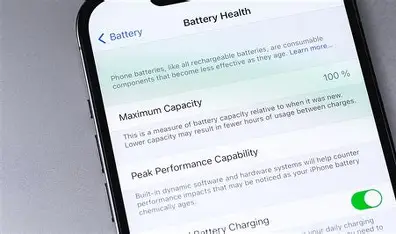
If your phone still does not charge after trying all steps, the battery or charging port may be damaged. In that case, visit an authorized service center for professional repair.
Tips to Prevent Charging Problems
Always use original or certified chargers. Avoid overcharging your phone overnight regularly. Keep the charging port clean. Do not bend the cable too much. Protect your phone from water and physical damage.
Smartphone charging problems are usually simple and easy to fix. By checking cables, cleaning the port, updating software, and restarting the device, you can solve most issues quickly without spending money.
FAQ
Why is my phone plugged in but not charging?
It may be due to a damaged cable, dirty charging port, or software glitch.
Can a bad battery cause charging issues?
Yes, an old or damaged battery can prevent proper charging.
Is it safe to clean the charging port?
Yes, but use a soft tool and avoid metal objects.
Should I replace my charger first?
Yes, always test with another charger before assuming a hardware problem.