How to fix Common Windows/Mac errors & fixes
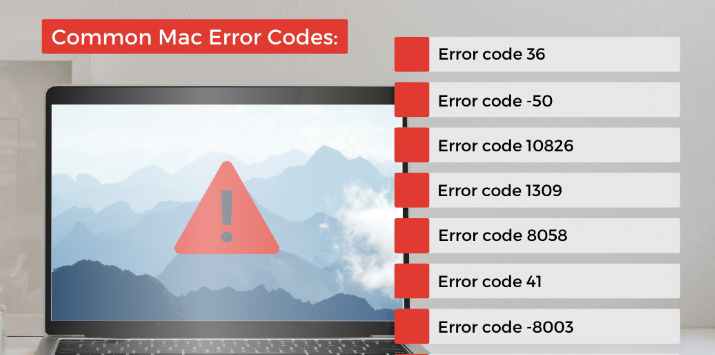
Computers sometimes show errors that can be confusing and stressful. Whether you are using a Windows PC or a Mac, small system problems can slow down your work, cause apps to freeze, or even stop your computer from starting. The good news is that most common Windows and Mac errors can be fixed easily by following simple troubleshooting steps. In this guide, you will learn practical solutions in very easy language.
First, understand that errors usually happen due to outdated software, corrupted system files, low storage space, malware, or hardware issues. Now let us go step by step for common problems and their fixes.
Windows Blue Screen Error (BSOD)
The Blue Screen of Death appears when Windows faces a serious system error. It may happen because of faulty drivers, RAM issues, or corrupted system files.
Steps to Fix:
Step 1: Restart your PC. Sometimes it is a temporary glitch.
Step 2: Update Windows by going to Settings and checking for updates.
Step 3: Update device drivers from Device Manager.
Step 4: Run System File Checker by opening Command Prompt and typing sfc /scannow.
Step 5: Check RAM and hard disk for errors using built-in diagnostic tools.
Mac Spinning Wheel (Beach Ball)
On macOS, you may see a spinning colorful wheel when an app freezes. This usually happens due to low memory or overloaded CPU.
Steps to Fix:
Step 1: Press Command + Option + Escape to open Force Quit and close the frozen app.
Step 2: Restart your Mac.
Step 3: Check storage space by going to About This Mac and Storage.
Step 4: Update macOS to the latest version.
Windows Not Booting
If your Windows PC does not start properly, the problem may be corrupted system files or a failed update.
Steps to Fix:
Step 1: Restart and enter Advanced Startup by pressing F8 or Shift + Restart.
Step 2: Choose Startup Repair.
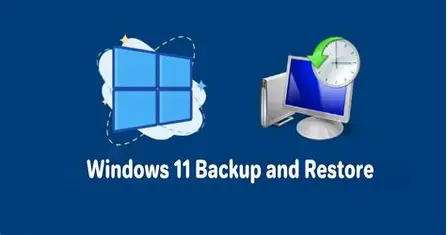
Step 3: If needed, use System Restore to go back to a previous working state.
Step 4: As a last option, reset Windows without deleting personal files.
If your Mac does not power on or gets stuck on the Apple logo, it may be a software or disk issue.
Steps to Fix:
Step 1: Press and hold the power button for 10 seconds, then restart.
Step 2: Boot into Recovery Mode by pressing Command + R during startup.
Step 3: Use Disk Utility to check and repair the disk.
Step 4: Reinstall macOS if required.
Wi-Fi Not Working on Windows/Mac
Internet issues are very common.
Steps to Fix:
Step 1: Restart your router and computer.
Step 2: Forget the Wi-Fi network and reconnect.
Step 3: Update network drivers on Windows.
Step 4: On Mac, reset network settings or create a new network location.
Slow Performance on Windows or Mac
If your computer feels slow, it may be due to too many startup programs or low storage.
Steps to Fix:
Step 1: Disable unnecessary startup apps.
Step 2: Delete temporary files and unused programs.
Step 3: Scan for malware on Windows.
Step 4: Restart the system regularly.
Devices like MacBook Air M2 or laptops running Windows 11 can also face performance issues if updates are ignored. Keeping your system updated improves stability and security.
General Tips to Avoid Errors
Always keep your operating system updated. Install software only from trusted sources. Keep enough free storage space. Use antivirus protection on Windows. Restart your system at least once a week.
Most Windows and Mac errors are not serious and can be fixed at home without technical support. By following these simple troubleshooting steps carefully, you can solve common problems and keep your computer running smoothly.
Why does my Windows computer show a blue screen?
It usually happens due to driver issues, hardware problems, or corrupted system files.
What does the spinning wheel on Mac mean?
It means the app is not responding and the system is processing something.
How can I fix slow computer performance?
Remove unnecessary startup apps, clear storage, update the system, and scan for malware.
When should I reinstall Windows or macOS?
Only when all troubleshooting steps fail and the system continues to show serious errors.