iPhone security & privacy settings
Your iPhone stores a lot of personal information, from messages and photos to passwords and payment details. iOS offers robust security and privacy features, but you need to enable and manage them properly to stay protected. Here’s a complete guide to iPhone security and privacy settings you should know in 2026.
1. Set a Strong Passcode and Face/Touch ID
Always use a strong passcode instead of a simple 4-digit code. Go to Settings > Face ID & Passcode (or Touch ID & Passcode) to set up biometric authentication. This adds an extra layer of security and ensures only you can unlock your device.
2. Enable Find My iPhone
Activate Find My iPhone in Settings > Apple ID > Find My. This helps you locate, lock, or erase your iPhone if it’s lost or stolen. You can also share location with family and friends safely.
3. Manage App Permissions
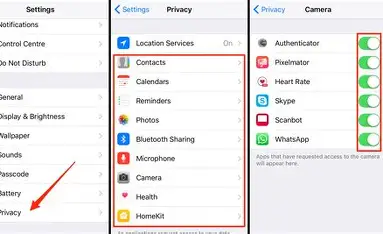
iOS lets you control what apps can access. Go to Settings > Privacy & Security to check location, camera, microphone, contacts, and photos. Restrict unnecessary permissions to prevent apps from collecting personal data.
4. Use iCloud Keychain for Passwords
iCloud Keychain securely stores and autofills your passwords across Apple devices. Enable it in Settings > Apple ID > iCloud > Keychain. You can also generate strong passwords automatically.
5. Enable Two-Factor Authentication (2FA)
Add 2FA to your Apple ID for extra protection. Go to Settings > Apple ID > Password & Security > Two-Factor Authentication. This prevents unauthorized access even if your password is compromised.
6. Control Tracking & Ad Privacy
iOS 17 includes App Tracking Transparency. Go to Settings > Privacy & Security > Tracking and disable apps from tracking your activity across other apps and websites. This reduces targeted ads and protects your privacy.
7. Enable Automatic Updates
Keep your iPhone secure by enabling automatic iOS updates. Go to Settings > General > Software Update > Automatic Updates to install security patches and bug fixes without delay.
8. Use Mail Privacy Protection
In Settings > Privacy & Security > Mail Privacy Protection, enable features that hide your IP address and prevent senders from knowing when you open emails. This protects you from tracking and spam.
9. Limit Location Sharing
Use Settings > Privacy & Security > Location Services to allow apps to access location only when in use, rather than always. You can also use Significant Locations for more control over personal location data.
10. Secure Safari and Web Browsing
iOS Safari offers privacy-focused features. Enable Fraudulent Website Warning, Prevent Cross-Site Tracking, and Hide IP Address in Settings > Safari to protect against malicious websites and tracking.
11. Lock Notes and Sensitive Files
Lock confidential notes with a password or Face/Touch ID in the Notes app. For files, use the Files app with iCloud Drive and enable encryption for sensitive documents.
12. Monitor Privacy Report
iOS 17 includes a Privacy Report that shows how often apps access sensitive data. Check it regularly in Settings > Privacy & Security > App Privacy Report to stay informed.
FAQ: iPhone Security & Privacy
Q1: Is Face ID or Touch ID secure enough?
Yes, both use biometric data securely stored in the device’s secure enclave and are very reliable.
Q2: What happens if I lose my iPhone with Find My iPhone enabled?
You can locate it, lock it remotely, display a message, or erase its data to prevent misuse.
Q3: Can I prevent apps from tracking me completely?
Yes, enable App Tracking Transparency and review each app’s permissions. iOS also blocks cross-app tracking by default.
Q4: Does iCloud Keychain store passwords safely?
Yes, all passwords are encrypted and synced securely across your Apple devices.
Q5: How often should I check app permissions?
It’s good practice to review app permissions monthly or whenever you install a new app to ensure no unnecessary access.
By properly configuring these iPhone security and privacy settings, you can protect personal data, prevent unauthorized access, and use your device safely in 2026.