How to install Windows 11 step-by-step
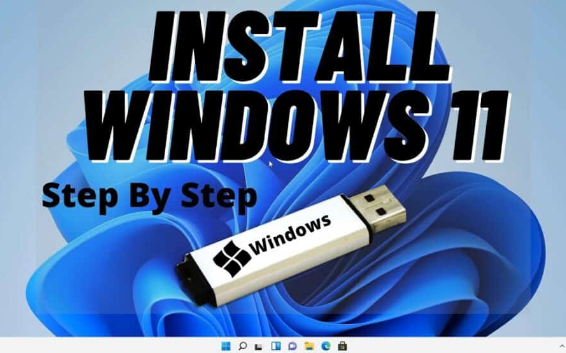
Installing Windows 11 may sound difficult, but if you follow the correct steps carefully, it becomes simple and safe. Windows 11 is the latest operating system from Microsoft, designed with a modern interface, better performance, improved security, and new productivity features. This complete step-by-step guide will help you install Windows 11 easily, even if you are a beginner.
Before You Start
Before installing Windows 11, make sure your PC meets the minimum system requirements. Your system should have at least 4GB RAM, 64GB storage, a compatible 64-bit processor, TPM 2.0 support, and Secure Boot enabled. You can check compatibility using Microsoft’s official PC Health Check tool from their website.
Also, back up your important files such as documents, photos, and videos. Installing Windows may delete data if you choose a clean installation.
Method 1: Upgrade from Windows 10 (Easiest Method)
If you are already using Windows 10 and your PC supports Windows 11, follow these steps:
Step 1: Connect your PC to the internet.
Step 2: Open Settings.
Step 3: Click on Update & Security.
Step 4: Select Windows Update.
Step 5: Click on Check for updates.
Step 6: If Windows 11 update is available, click Download and Install.
Step 7: Wait for the download to complete.
Step 8: Restart your PC when prompted.
Your system will automatically install Windows 11. This method keeps your files and applications safe.
Method 2: Clean Installation Using USB (Advanced Method)
A clean installation removes everything and installs a fresh copy of Windows 11. This method is recommended if your PC is slow or infected with viruses.
Step 1: Download Windows 11 Installation Media
Go to the official Microsoft website and download the Media Creation Tool for Windows 11.
Step 2: Create a Bootable USB Drive
Insert a USB drive with at least 8GB storage.
Run the Media Creation Tool.
Select Create installation media.
Choose language and edition.
Select USB flash drive and complete the process.
Step 3: Boot from USB
Insert the bootable USB into your PC.
Restart the computer.
Press the Boot Menu key (usually F12, F2, Esc, or Delete depending on manufacturer).
Select the USB drive to boot from it.
Step 4: Install Windows 11
Once the setup screen appears:
Choose language, time, and keyboard preferences.
Click Install Now.
Enter product key or select I don’t have a product key.
Choose Windows 11 edition.
Accept license terms.
Select Custom: Install Windows only.
Choose the drive where you want to install Windows.
Click Next.
The installation process will begin. Your PC may restart multiple times. Do not remove the USB until installation completes.
Step 5: Complete Setup
After installation, you will be asked to:
Select region and keyboard layout.
Connect to Wi-Fi.
Sign in with a Microsoft account.
Set privacy settings.
Create a PIN.
Once completed, your Windows 11 desktop will appear.
Important Tips
Always back up data before clean installation.
Keep your laptop connected to power during installation.
Update drivers after installation for best performance.
Install antivirus and important updates immediately.
Common Problems and Solutions
If Windows 11 is not installing, check if TPM 2.0 and Secure Boot are enabled in BIOS.
If installation freezes, restart the process and recreate the bootable USB.
If you get compatibility errors, verify system requirements again.
Frequently Asked Questions (FAQ)
- Is Windows 11 free?
Windows 11 is free for eligible Windows 10 users. If your PC supports it, you can upgrade without extra cost. - Will I lose my files during installation?
If you upgrade normally, your files remain safe. If you perform a clean installation, all data on the selected drive will be deleted. - How long does installation take?
Usually 30 to 60 minutes depending on system speed and internet connection. - Can I install Windows 11 without internet?
Yes, you can install using USB, but some features require internet during setup. - What if my PC does not support Windows 11?
You can continue using Windows 10 safely, as it is supported by Microsoft until its official end-of-support date.
Final Conclusion
Installing Windows 11 is simple when done carefully. Whether you upgrade directly or perform a clean installation using USB, follow each step properly and always back up your data. With its modern design and improved security, Windows 11 provides a smoother and more productive computing experience for both personal and professional use.