How to Fix Wi-Fi not connecting issues
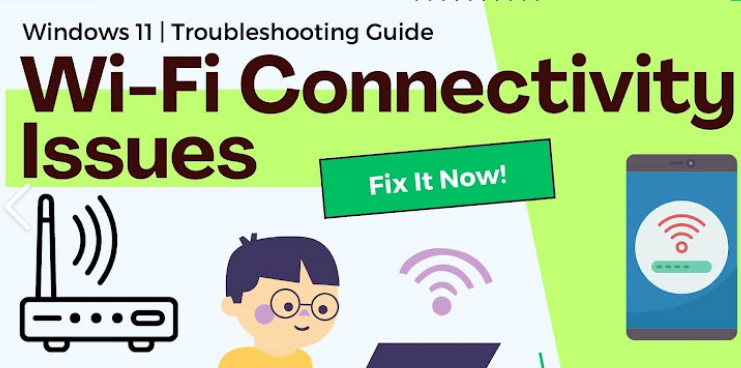
Wi-Fi not connecting is a very common problem today. Whether you are using a laptop, desktop, or smartphone, internet issues can stop your work, online classes, gaming, or streaming. The good news is that most Wi-Fi problems are easy to fix if you follow the correct steps carefully. In this simple guide, you will learn step-by-step troubleshooting methods to solve Wi-Fi not connecting issues.
First, understand the problem clearly. Sometimes Wi-Fi shows connected but there is no internet. Sometimes the Wi-Fi network does not appear at all. In other cases, it connects but keeps disconnecting again and again. The solution depends on the type of issue you are facing.
Step 1: Restart Your Device and Router
Turn off your phone, laptop, or PC completely. Then switch off your Wi-Fi router and modem. Wait for at least 30 to 60 seconds. Turn on the modem first, then the router, and finally your device. This simple restart fixes temporary network errors in most cases.
Step 2: Check If Other Devices Can Connect
Try connecting another phone or laptop to the same Wi-Fi network. If other devices also cannot connect, the problem may be with your router or internet service provider. If only one device is not connecting, the issue is likely in that device’s settings.
Step 3: Check Wi-Fi Password
Make sure you are entering the correct password. Passwords are case-sensitive, which means capital and small letters must be correct. If you recently changed your Wi-Fi password, enter the updated one.
Step 4: Turn Off Airplane Mode
Sometimes airplane mode is turned on by mistake. Open your device settings and make sure airplane mode is disabled.
Step 5: Forget and Reconnect to the Network
Go to Wi-Fi settings on your device. Select your network name. Tap on “Forget Network.” After that, search for the network again and reconnect by entering the password. This refreshes the connection settings.
Step 6: Check Router Placement
Place your router in an open and central location in your home. Avoid keeping it near walls, metal objects, microwave ovens, or televisions. Poor signal strength can cause frequent disconnections.
Step 7: Update Device Software
Outdated software can create connectivity issues. If you are using devices like iPhone 15 or Samsung Galaxy S23, go to Settings and check for system updates. Install the latest updates to improve performance and network stability.
Step 8: Run Network Troubleshooter (Windows Users)
On Windows, open Settings, go to Network & Internet, and select Troubleshoot. Windows will automatically detect and fix common network problems.
Step 9: Change DNS Settings
Sometimes DNS issues cause internet problems. You can manually set DNS to Google DNS by entering 8.8.8.8 and 8.8.4.4 in your network settings. This can improve connection reliability.
Step 10: Check Router Firmware
Open your browser and type your router’s IP address such as 192.168.1.1 or 192.168.0.1. Log in to the admin panel and check for firmware updates. Updating firmware improves speed, security, and stability.
Step 11: Reset Router (Last Option)
If nothing works, press and hold the reset button on your router for about 10–15 seconds. This will restore factory settings. After reset, you will need to set up your Wi-Fi name and password again.
Step 12: Contact Your Internet Service Provider
If all steps fail, contact your ISP. There might be an outage in your area or a problem with your broadband connection.
To avoid future Wi-Fi issues, restart your router once a week, keep devices updated, use a strong password, and avoid connecting too many devices at the same time.
By following these step-by-step troubleshooting methods, you can quickly fix most Wi-Fi not connecting issues without technical help. Stay calm, follow each step carefully, and your internet connection should be restored easily.
FAQ
What is the first step to fix Wi-Fi not connecting?
Restart your device and router. This solves most temporary issues.
Why does Wi-Fi show connected but no internet?
It may be due to ISP problems, DNS errors, or router malfunction.
How can I improve weak Wi-Fi signals?
Place your router in an open central area and reduce interference from other electronics.
Is it safe to reset my router?
Yes, but only as a last option because it removes all saved settings.
How often should I restart my router?
Restarting once a week helps maintain better performance and stable connectivity.