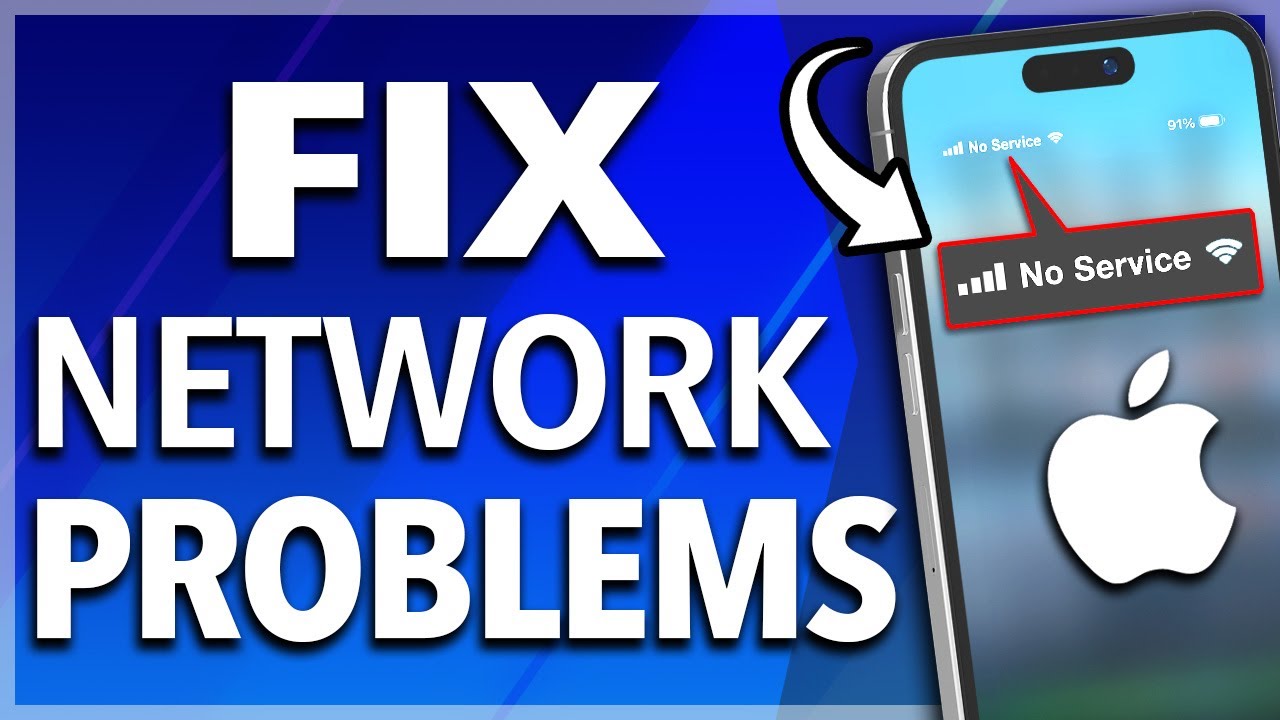
Fix iPhone Network Issues – Simple Guide for Everyone
If your iPhone shows “No Service,” slow internet, or keeps disconnecting from mobile data or WiFi, don’t worry. Network problems are common and can usually be fixed in a few minutes. This guide explains simple steps in easy language. Example devices include iPhone 13, iPhone 14, and iPhone 15, but these steps work for most models.
Common iPhone Network Problems
Here are the most common issues:
- No Service or Searching signal
- Mobile data not working
- WiFi connected but no internet
- Calls dropping
- Slow internet speed
- SIM not detected
Now let’s fix them step by step.
1. Turn Airplane Mode On and Off
This is the fastest fix.
Go to Settings and turn on Airplane Mode. Wait 30 seconds. Turn it off again.
This refreshes your network connection.
2. Restart Your iPhone
Restarting clears small system errors.
Press and hold the side button and volume button (on iPhone 13, 14, 15). Slide to power off. Turn it back on after 20 seconds.
3. Check Mobile Data Is Enabled
Go to Settings > Mobile Data (or Cellular).
Make sure Mobile Data is turned on.
Also check if your data plan is active with your network provider.
4. Remove and Reinsert SIM Card
If your iPhone shows “No SIM” or “No Service,” remove the SIM card and insert it again carefully.
This often fixes SIM detection problems.
5. Reset Network Settings
If internet is still not working, reset network settings.
Go to Settings > General > Transfer or Reset iPhone > Reset > Reset Network Settings.
This will remove saved WiFi passwords, so you will need to enter them again.
6. Update iOS Software
Sometimes network issues happen due to software bugs.
Go to Settings > General > Software Update.
Install the latest iOS version if available.
7. Check Carrier Settings Update
Your network provider sometimes releases updates.
Go to Settings > General > About.
If a carrier update is available, you will see a pop-up.
8. Check for Network Outage
Sometimes the problem is not your phone. It could be your mobile network provider having technical issues. Contact your carrier to confirm.
9. Try Another WiFi Network
If WiFi is not working, connect to another network.
If it works there, the issue is with your router, not your iPhone.
Example
If your iPhone 14 shows “No Service,” first turn Airplane Mode on and off. If it still does not work, restart the phone. If the problem continues, reset network settings. In most cases, this fixes the issue.
When to Visit Apple Support
If none of the above steps work, there could be a hardware problem like a damaged antenna. In that case, contact Apple Support or visit an authorized service center.
FAQ
Q1. Why does my iPhone say No Service?
It could be a weak signal area, SIM issue, software bug, or network outage.
Q2. Will resetting network settings delete my data?
No. It only removes WiFi passwords and network settings. Your photos and apps stay safe.
Q3. Why is my mobile data slow?
It could be weak signal strength, data limit reached, or network congestion.
Q4. How do I know if my SIM card is damaged?
If your SIM does not work in another phone, it may be damaged. Contact your carrier for a replacement.
Q5. Can a software update fix network problems?
Yes. Many network bugs are fixed in new iOS updates.
Final Words
iPhone network problems are usually easy to fix. Start with simple steps like Airplane Mode and restart. If the issue continues, reset network settings or contact your carrier. Following these steps can save time and avoid unnecessary repairs.