How to optimize PC for gaming
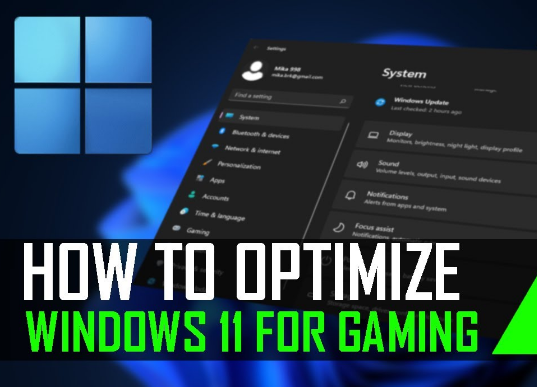
If your games are lagging, freezing, or not running smoothly, your PC may not be optimized properly. Gaming performance depends on hardware, software settings, drivers, and system maintenance. With the right adjustments, you can improve FPS, reduce lag, and get smoother gameplay without buying a new computer. This complete step-by-step guide will help you optimize your PC for gaming in a simple and practical way.
Step 1: Update Windows to the Latest Version
If you are using Windows 11 or Windows 10, make sure your system is fully updated.
Go to Settings
Click Windows Update
Select Check for updates
Updates often include performance improvements and security patches that can enhance gaming stability.
Step 2: Update Graphics Drivers
Your graphics card driver plays a major role in gaming performance. If you use an NVIDIA GPU, update drivers through GeForce Experience. If you use an AMD GPU, update through AMD Adrenalin.
Latest drivers improve FPS, fix bugs, and optimize new game releases.
Step 3: Enable Game Mode
Windows has a built-in Game Mode feature.
Go to Settings
Click Gaming
Turn on Game Mode
Game Mode reduces background processes and prioritizes gaming performance.
Step 4: Adjust Power Settings
Set your power plan to High Performance.
Open Control Panel
Go to Power Options
Select High Performance
This ensures your CPU and GPU run at maximum performance instead of power-saving mode.
Step 5: Close Background Applications
Before starting a game, close unnecessary apps like browsers, file transfers, and software running in the background.
Press Ctrl + Shift + Esc
Open Task Manager
End tasks that are not required
This frees RAM and CPU resources.
Step 6: Optimize In-Game Settings
Lowering certain graphics settings can significantly increase FPS.
Reduce shadow quality
Lower texture resolution
Disable motion blur
Turn off V-Sync if experiencing input lag
Reduce anti-aliasing
Balance visuals and performance based on your system capability.
Step 7: Disable Startup Programs
Too many startup programs slow down your PC.
Open Task Manager
Go to Startup tab
Disable unnecessary applications
This improves boot time and frees system resources.
Step 8: Upgrade Hardware (If Needed)
If optimization does not give good results, consider upgrading hardware:
Add more RAM (at least 16GB recommended for modern games)
Upgrade to SSD for faster loading times
Upgrade graphics card for better FPS
Hardware upgrades provide the biggest performance boost.
Step 9: Keep Your PC Clean
Dust inside your PC can cause overheating. Overheating reduces performance due to thermal throttling.
Clean fans and vents regularly
Ensure proper airflow
Use cooling pads for laptops
Maintaining temperature improves gaming stability.
Step 10: Adjust Visual Effects for Performance
You can disable extra Windows visual effects.
Search “Adjust the appearance and performance of Windows”
Select Adjust for best performance
This reduces system load and improves responsiveness.
Step 11: Use DirectX and Latest Game Patches
Ensure you have the latest version of DirectX installed. Game developers also release patches to fix performance issues. Always keep games updated.
Common Mistakes to Avoid
Installing random optimization software
Overclocking without knowledge
Ignoring driver updates
Running too many background apps
Using outdated hardware for modern games
Frequently Asked Questions (FAQ)
- How much RAM is best for gaming?
16GB RAM is ideal for most modern games. 8GB may work for lighter games, but 16GB ensures smoother performance. - Does SSD improve gaming performance?
SSD does not increase FPS much, but it significantly reduces loading times and improves overall responsiveness. - What is good FPS for smooth gaming?
60 FPS is considered smooth for most games. Competitive gamers prefer 120 FPS or higher. - Should I use Game Mode?
Yes, Game Mode helps prioritize gaming processes and reduces background activity. - Can updating drivers really improve FPS?
Yes. Updated GPU drivers often include performance optimizations for new games.
Final Conclusion
Optimizing your PC for gaming is a combination of updating drivers, adjusting system settings, managing background apps, and maintaining hardware. You do not always need expensive upgrades. With proper configuration and regular maintenance, you can significantly improve gaming performance and enjoy smoother gameplay on your PC.